

The Applicants list
Know where every applicant stands without opening a single file
Each applicant on your list gets a short AI summary of what has happened so far, like when the AI interview was finished or a video call was booked, written in plain English.
Right under the name you see the job, when they applied, where they live, how long the drive is, your star rating and your team's average, and their tags.
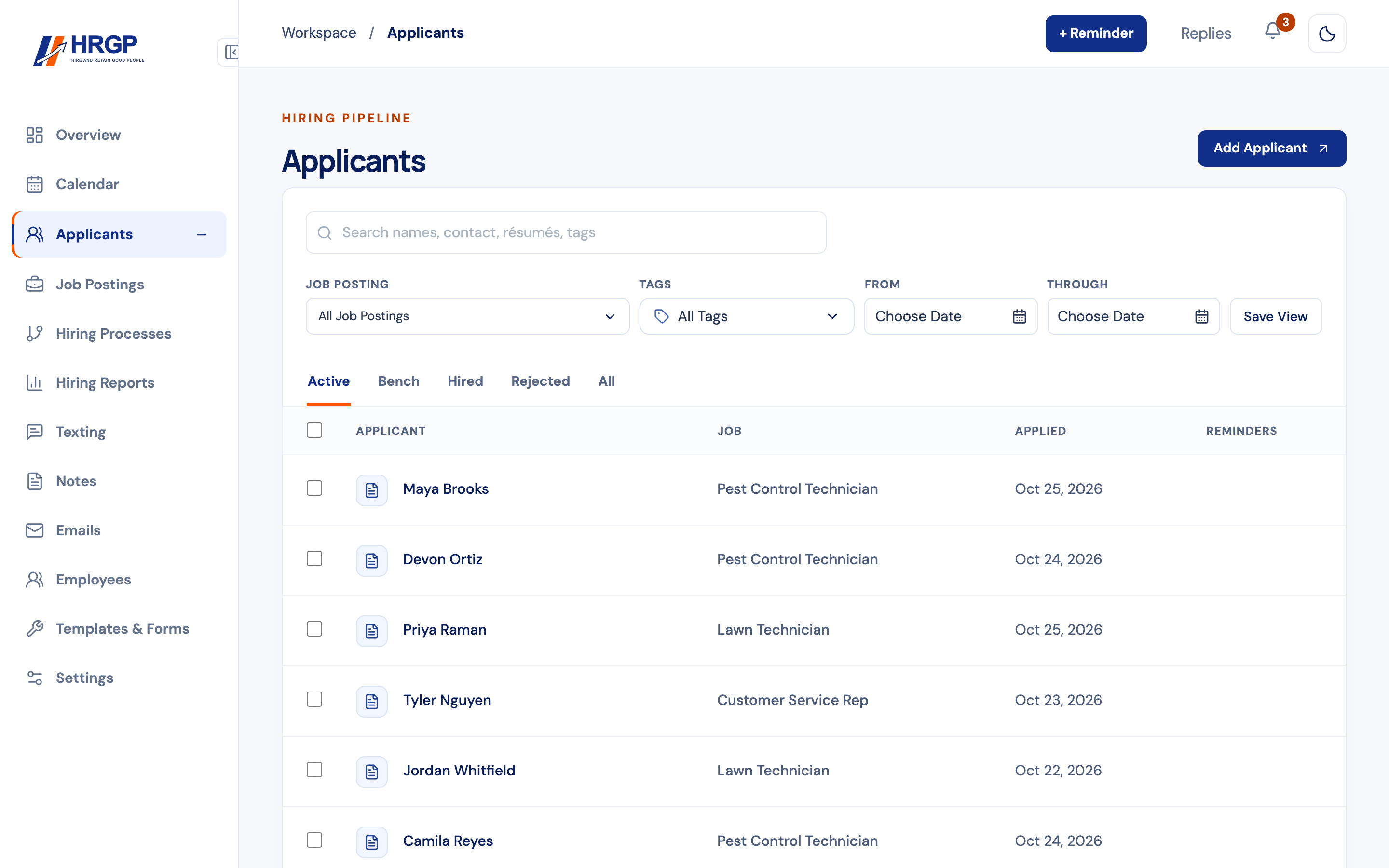
Watch: See Every Applicant at a Glance
A short walk-through with sample data. Watch on YouTube
See it work with your own team. 14-day free trial, no credit card needed.
Start Free TrialEverything you need on one line
A short AI summary
Up to three sentences on the applicant's latest activity, newest first, including who on your team did what.
Where they live and the drive to work
The city and state from the résumé, the commute each way and the daily tolls for the round trip.
Your rating and your team's
Click the stars to rate an applicant. HRGP shows your team's average next to yours, with how many people rated.
Tags you can trust
Start with 13 ready-made tags like Valid DL, Bilingual, Own Tools / Vehicle and Immediate Start, and add your own. Do Not Rehire shows first, in red.
When they applied, in the job's time zone
See the exact day and time each applicant applied, so the newest people get a call first.
A red Needs review tag when someone is waiting
On an Automated job, a review rule can pause an applicant until a manager chooses Continue or Reject. The red tag comes first in the row, and Needs review is first in the Tags filter.
A full page for each applicant
Hiring steps, notes and Timeline in one place, with arrows to move through your list. It works on a phone too.
Bulk actions for the people you tick
Add a note or tag, send an email or text, invite to an AI, video or in-person interview, or reject. Each person gets their own, and their hiring step updates.
Saved views for the lists you use most
Save your job, applied dates, search, tab, tags and step under a name, then apply it in one click. Your saved views are private to you.
Find the right people quickly
The search box looks through names, contact details, résumés and tags, so you can find the person who mentioned a Florida pest control card without opening every file.
Next to the search are four filters: job posting, tags, when they applied, and which hiring step they are on. Tabs along the top split the list into Active, Hired, Rejected and All. When you find a combination you use every week, save it as a view and it comes back in one click.
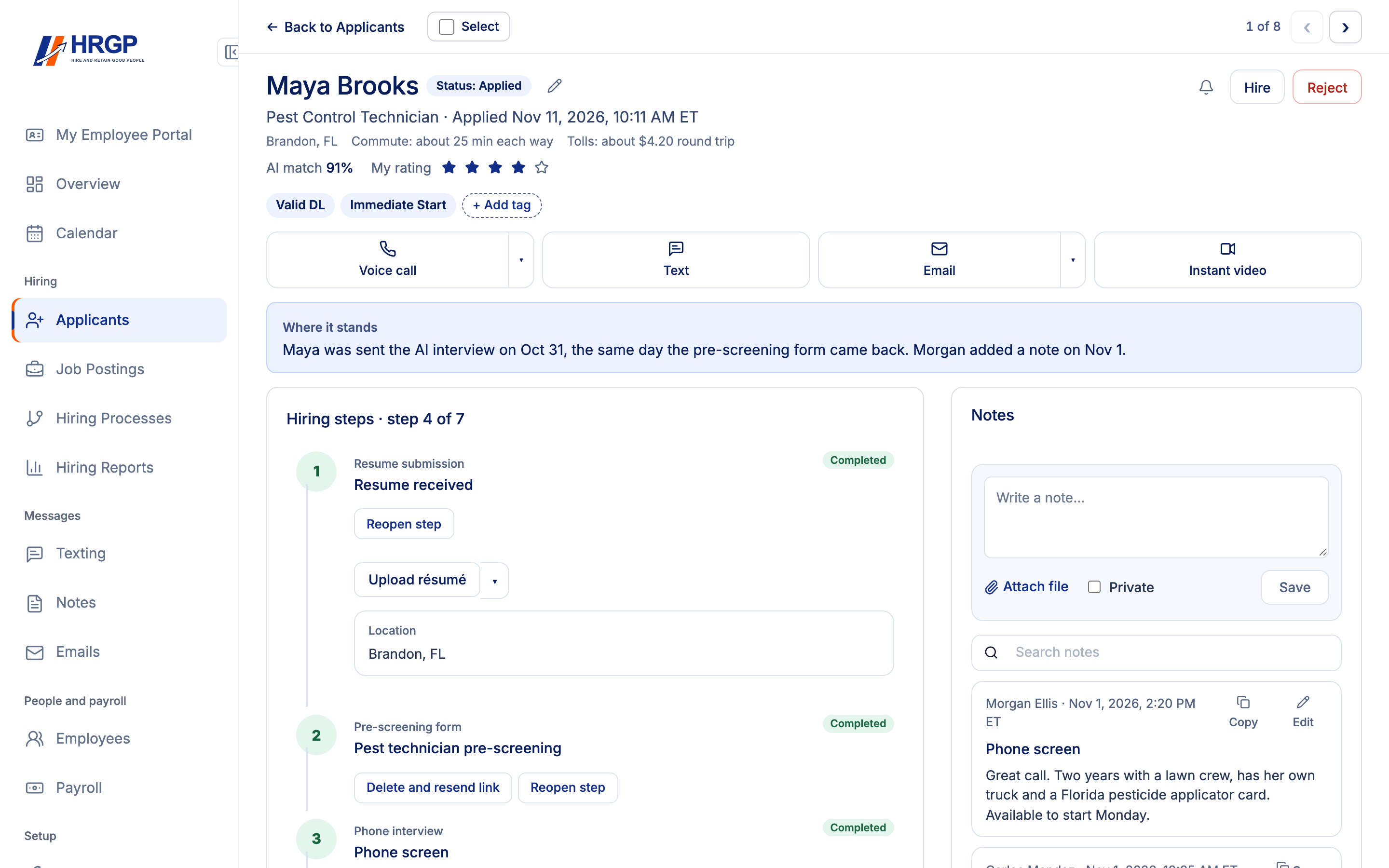
Every applicant has a full page
Click anywhere on an applicant's row, or the View button, and their own page opens. At the top are the job, when they applied, where they live, the commute and tolls, the AI match, your star rating and their tags, with buttons to call, text, email or start a video call. Under that, Where it stands sums up what has happened in one or two sentences.
Further down are all of their hiring steps, in order, with the current one marked, plus your team's notes and the applicant's Timeline. Each step has its own buttons, such as Invite to video interview or Send Mira assessment. Edit steps changes the process for that one applicant only. Steps that have started, were sent or are done stay where they are.
Use the arrows at the top, or the J and K keys, to go to the next or previous applicant on your list, with your filters kept. Tick Select to include someone in a bulk action, and Back to Applicants takes you to the list where you left it. Each page has its own web address, so you can send someone on your team straight to an applicant.
On a phone, buttons at the top jump to Hiring steps, Notes or Timeline, and Call, Text, Email, Interview and More stay along the bottom of the screen.

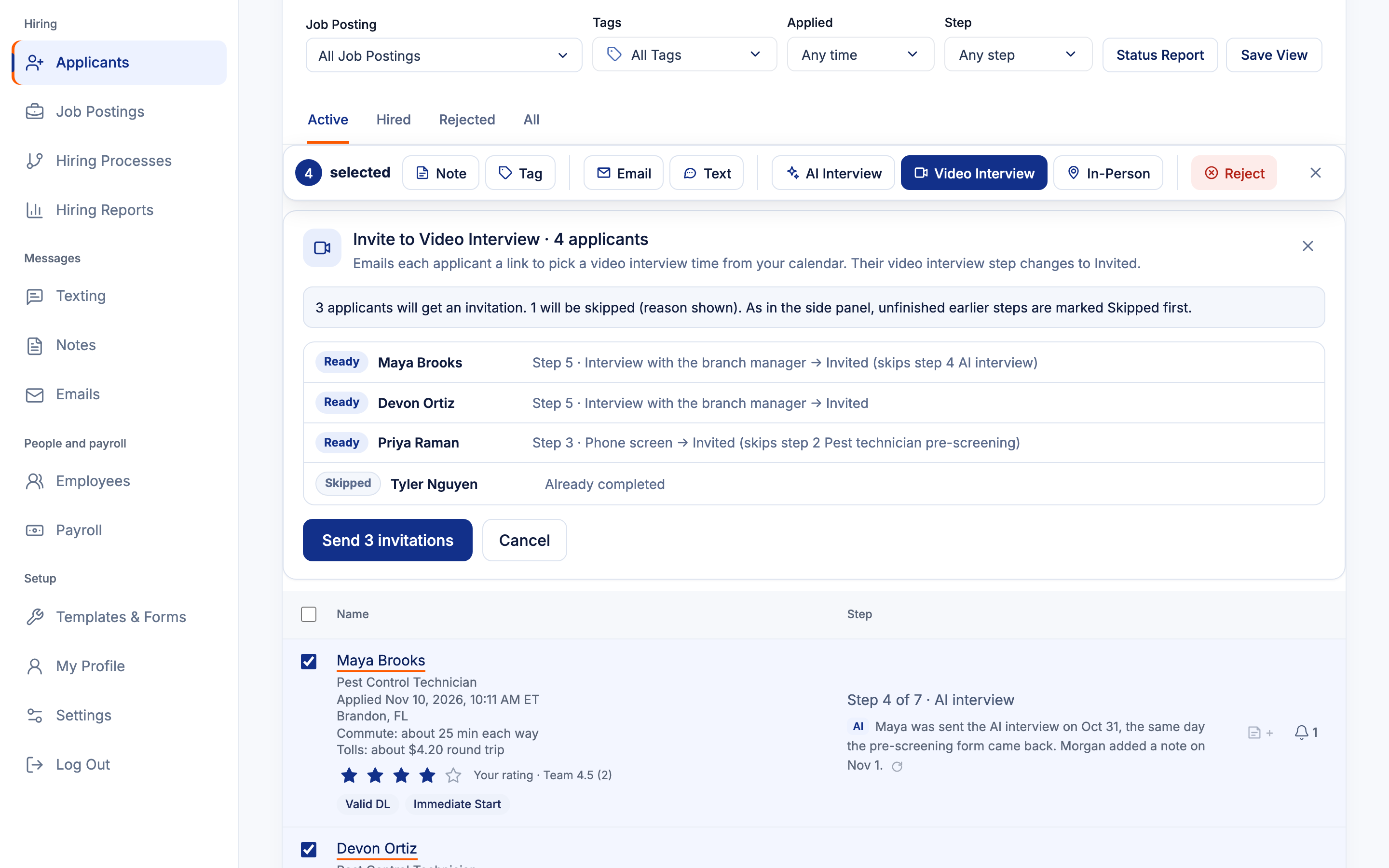
Do it for many applicants at once
Tick the applicants you want, or tick the box at the top to pick the whole page. A bar appears with Note, Tag, Email, Text, AI Interview, Video Interview, In-Person and Reject, and it stays at the top of the screen while you scroll.
Each action is done for each person exactly as if you had done it one at a time. A video or in-person invitation marks that person's interview step as Invited, an AI interview step changes to Sent, and every note, email, text and tag goes on that person's own Timeline. Their AI summary updates on its own.
Before an invitation goes out, HRGP checks each person's hiring steps and shows who gets one, which step changes, and who is skipped and why, such as an interview that is already done. When it finishes you see a Done, Skipped or Not done line for every person.

Remember the follow-up
The Reminder button at the top of the page sets a reminder from anywhere in HRGP. Pick a time such as Tomorrow 9 am, link it to an applicant if you want, and choose how you are told: in the app, by push, or both. A small bell on the applicant's row shows that a reminder is waiting.
Why it helps
- Decide who to call next in seconds, not after opening ten files.
- Everyone on your team sees the same history, so nobody calls an applicant twice.
- Every note and tag change is kept on the applicant's Timeline with who made it.
- Included in your $99 plan.
Applicants list questions
Where does the AI summary come from?
HRGP writes it from the applicant's own history in HRGP: hiring steps, forms, interviews, tags and who added a note. It never uses the words of your notes.
Can each person on my team rate an applicant?
Yes. Each person gives their own star rating, and HRGP shows the team average next to it.
Can I make my own tags?
Yes. Every company starts with 13 tags, and your admins can add tags of your own.
Can I go through applicants one after another?
Yes. Open the first one, then use the arrows at the top of the page, or the J and K keys, to move to the next or previous applicant on your list. Your filters and search stay as they were.
Does the applicant page work on a phone?
Yes. The page fits the screen, buttons at the top jump to Hiring steps, Notes or Timeline, and Call, Text, Email, Interview and More stay along the bottom.
Can I change one applicant's steps without changing the job's process?
Yes. Edit steps changes that applicant only. You can move, remove or add steps that have not started.
Can I search inside résumés?
Yes. The search on the Applicants page covers names, contact details, résumés and tags.
Can I email or text several applicants at once?
Yes. Tick them on the Applicants list and choose Email or Text. Each person gets their own message with their own first name, and it goes on their Timeline. Anyone who asked not to be contacted is skipped.
If I invite several applicants to an interview at once, do their hiring steps change?
Yes. It works the same as inviting each one from their own page: the interview step changes to Invited, or Sent for an AI interview, and any unfinished earlier step is marked Skipped first, just like on their own page.
Can I save a filter I use often?
Yes. Save View keeps the job, applied dates, search, tab, tags and step under a name. Only you see your saved views.
Related
See who to call first
Part of HRGP, the HRIS for small business. $99 a month. No per-seat fees. 14-day free trial.