

Time & pay
Publish the week. Everyone sees it on their phone.
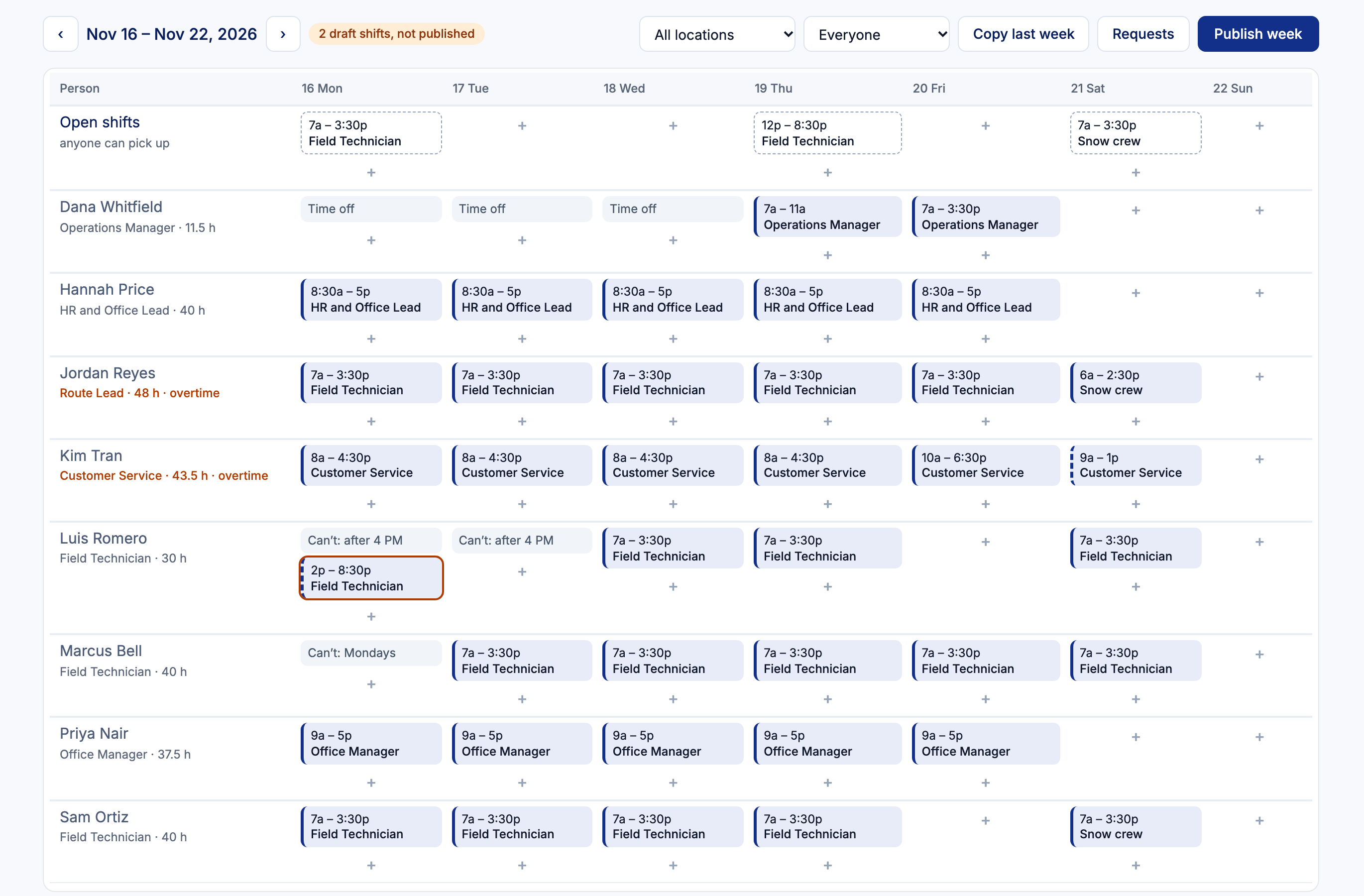
Build the week by person or as open shifts. HRGP shows time off, holidays and overtime as you go, then emails each person their shifts when you publish.
With the Time Clock on, you can see who started late, left early or didn't punch in.

How scheduling works
Build the week
Add shifts for people or as open shifts anyone in the job can pick up. Repeat a shift every week, or copy last week as a draft.
See problems before you publish
HRGP warns about overlaps, short rest between shifts, time off, holidays and overtime. Warnings never stop you saving.
Publish
Each person gets one email with their week, and My schedule in My Employee Portal shows it.
Swaps and pick-ups
People ask to swap, pick up an open shift or say they can't make it. The manager approves, or you let simple ones go through on their own.
Scheduled vs worked
Published shifts sit next to Time Clock punches: on time, late, left early or no punch.
Clock-in places (US)
- Add the places people work, with a circle from 100 to 500 meters around each.
- Choose to stop a punch-in away from the place, or let it through and mark it Outside.
- The phone's location is read only when someone taps a punch button, and only after they agree. HRGP never follows anyone.
- Someone who is stopped can ask their manager to punch them in, with a reason.
- Exact points are cleared after 90 days.
Scheduling questions
Do employees need an app?
No. My schedule works in any phone browser, and HRGP can be added to the home screen like an app.
Does the schedule send hours to payroll?
No. Hours still come from the Time Clock, which you approve as today. The schedule shows an estimated cost for the week.
Is the location check required?
No. It's off unless you add clock-in places, and you choose who it applies to.
Related
Build next week's schedule in a few minutes.
Part of HRGP, the HRIS for small business. $99 a month. No per-seat fees. 14-day free trial.